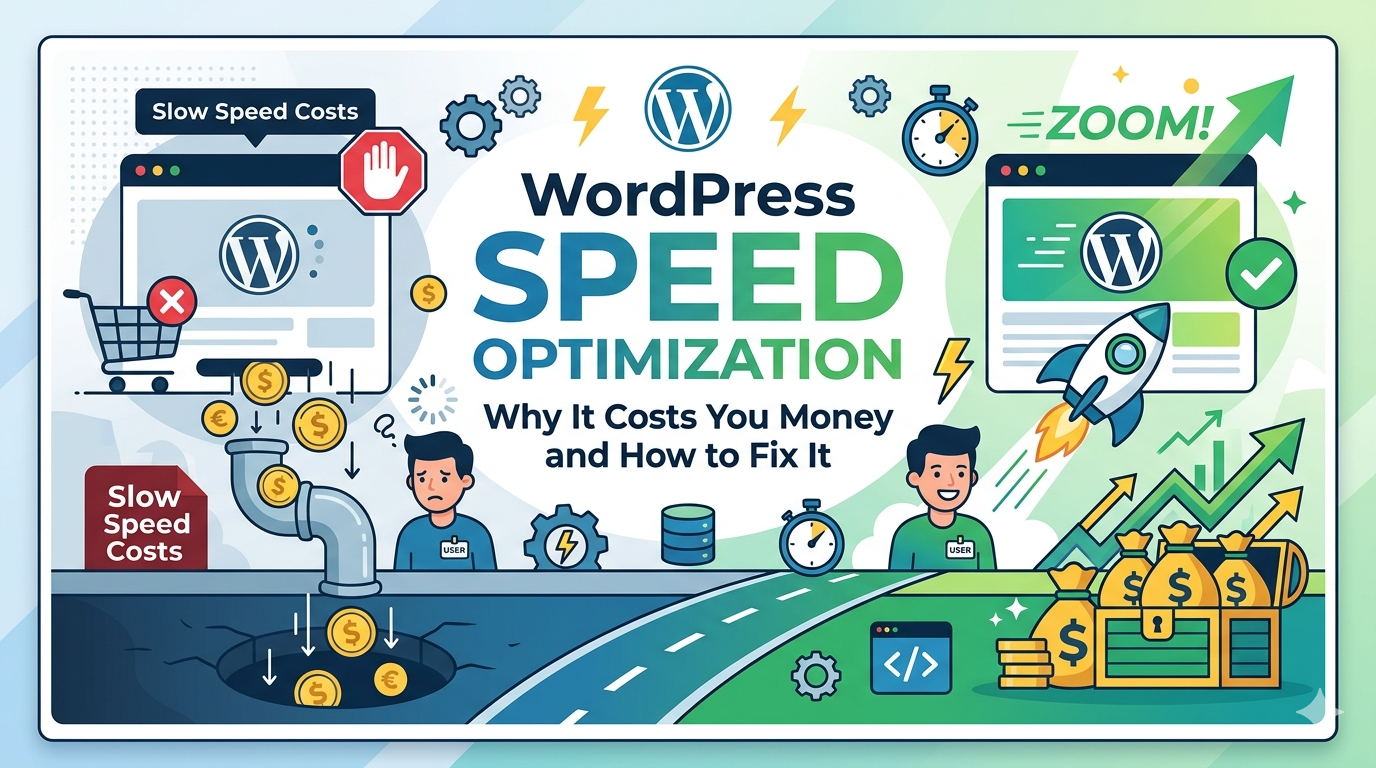
A one-second delay in page load time reduces conversions by 7%. On a site generating $10,000/month in leads or sales, that’s $700 per second of delay – every month. Statista’s e-commerce data shows the direct correlation between site performance and online revenue across sectors.
Most business owners discover their WordPress site is slow when they run a Google PageSpeed test and see a red score. The instinct is to treat it as a technical problem. In reality, it’s a revenue problem with a technical root cause.
This guide is for business owners who want to understand why WordPress sites get slow, what it actually costs to leave it unfixed, what you can address yourself, and when the right move is calling in a professional WordPress speed optimization service.
Why WordPress Site Speed Is a Business Problem, Not a Tech Problem
Site speed shows up in three places that directly affect your bottom line.
Search rankings: Google incorporated Core Web Vitals – a set of speed and stability metrics – as a confirmed ranking factor in 2021. Google’s Core Web Vitals documentation explains what each metric measures and how they affect search visibility. Pages that load slowly, shift unexpectedly as they load, or respond sluggishly to user input are penalized in organic rankings relative to faster competitors. If your site is slow and your competitor’s isn’t, they have a structural SEO advantage over you.
Bounce rate: Google’s own research shows that as page load time goes from 1 second to 3 seconds, the probability of a visitor bouncing increases by 32%. From 1 second to 5 seconds: 90%. Most of the visitors who leave before your page finishes loading never come back – and they never become customers.
Conversion rate: Portent’s research puts the e-commerce conversion rate for a site that loads in 1 second at 39%. At 3 seconds, that drops to 29%. At 5 seconds, it’s 18%. For a brochure site, slow speed means fewer form submissions and fewer calls. For an e-commerce site, it means abandoned carts.
The business case for fixing a slow WordPress site is not “Google will like you better.” It’s that every visitor who bounces because of load time is a lead or a sale that didn’t happen. Speed is a revenue lever.
What Makes WordPress Slow? The 7 Most Common Culprits
WordPress itself is not inherently slow. Well-built WordPress sites regularly score 90+ on Google PageSpeed. But the platform’s flexibility – the plugins, themes, and hosting configurations that make it powerful – also create multiple paths to poor performance.
1. Unoptimized images: Images are the single largest contributor to page weight on most WordPress sites. An uncompressed 4MB product photo or hero image that loads full-size on mobile adds seconds to load time on its own. Most sites have dozens of them.
2. Plugin bloat: Each installed plugin adds PHP execution time, database queries, and often JavaScript and CSS loaded on every page. A site with 25+ plugins – typical of many small business WordPress installs – carries significant performance overhead. Many plugins also add front-end scripts that load even on pages where the plugin does nothing.
3. Cheap shared hosting: Shared hosting puts your site on a server with dozens or hundreds of other sites competing for the same CPU, memory, and disk I/O. Under any real traffic load, resource contention slows response times. WordPress needs PHP memory allocation and server response times that shared hosting often can’t reliably deliver.
4. No caching strategy: Without caching, WordPress generates each page dynamically – querying the database and executing PHP on every single request. With proper caching, frequently requested pages are served from a pre-built static file in milliseconds. The difference in time-to-first-byte (TTFB) is dramatic.
5. Render-blocking JavaScript and CSS: Scripts and stylesheets that load in the page header block the browser from rendering anything visible until they finish downloading. Third-party scripts – analytics tags, chat widgets, ad pixels, social share buttons – are the most common culprits. Each one adds external HTTP requests and delays render start.
6. Bloated themes: Page builder themes (Elementor, Divi, Avada, and similar) ship with CSS and JavaScript for every possible layout option, animation, and design feature the theme supports – regardless of what your site actually uses. A site built on Elementor often loads 1–2MB of CSS and JS that does nothing on your specific pages.
7. No CDN: A Content Delivery Network serves your site’s static files (images, CSS, JS) from servers geographically close to each visitor. Without a CDN, a visitor in California loading a site hosted in New York waits for every asset to travel across the country. With a CDN, those assets load from a server minutes away.
Most slow WordPress sites have at least three or four of these problems simultaneously.
What Google’s Core Web Vitals Actually Mean for Your Business
Core Web Vitals are Google’s framework for measuring real-world page experience. Three metrics are the current standard:
LCP – Largest Contentful Paint: How long it takes for the largest visible element on the page to load – usually a hero image, above-the-fold photo, or large text block. Google’s threshold: under 2.5 seconds is “good.” Over 4 seconds is “poor.”
In plain terms: LCP measures when your visitor can actually see the page. A poor LCP score means visitors are staring at a blank or partially loaded screen for 4+ seconds. Most won’t wait.
CLS – Cumulative Layout Shift: How much the page elements move around after initial load – text that jumps when an image loads, buttons that shift when an ad appears. Google’s threshold: under 0.1 is “good.”
In plain terms: CLS measures visual stability. A high CLS score means visitors trying to click a button find it has moved. On mobile, this causes accidental taps on wrong elements and immediate frustration.
INP – Interaction to Next Paint: How quickly the page responds after a user action (clicking a button, submitting a form). Replaced FID (First Input Delay) as a Core Web Vitals metric in 2024. Google’s threshold: under 200ms is “good.”
In plain terms: INP measures responsiveness. A poor INP score means your site feels sluggish and unresponsive – the digital equivalent of a salesperson who pauses for three seconds before answering every question.
How to check your current scores: Go to Google PageSpeed Insights, enter your URL, and run the test. The report separates Lab Data (simulated) from Field Data (real users). Focus on the Field Data – that’s what Google uses for rankings.
A “needs improvement” or “poor” rating on any Core Web Vitals metric is a ranking signal disadvantage against competitors who pass.
The WordPress Speed Optimization Checklist
Improving WordPress performance involves work across several layers. Here’s what each one covers:
Image optimization
- Compress images before uploading: Use tools like Squoosh, TinyPNG, or Photoshop’s “Export for Web” to reduce file size before images reach WordPress. A 4MB photo compressed to 300KB loads 13x faster with minimal visible quality loss.
- Convert to WebP: WebP images are 25–35% smaller than JPEGs at equivalent quality. WordPress natively supports WebP; older themes may need a plugin for conversion.
- Enable lazy loading: Images below the fold should load only when the visitor scrolls toward them, not on initial page load. WordPress has lazy loading built in since version 5.5; verify it’s working on your site.
- Set correct image dimensions: Don’t upload a 2000px-wide image for a 400px thumbnail slot. Serve the right size for the right context.
Caching strategy
- Page caching: Serve pre-built static HTML to visitors instead of running PHP and database queries on every request. Plugins like WP Rocket, W3 Total Cache, or LiteSpeed Cache handle this. Most managed WordPress hosts include server-level page caching.
- Object caching: Cache database query results using Redis or Memcached. Reduces database load significantly on content-heavy sites. Requires server-level setup – not a plugin-only fix.
- Browser caching: Tell visitors’ browsers to cache static files locally so returning visitors don’t re-download them. Configured in the server settings or via caching plugin.
Hosting infrastructure
This is the factor most business owners underestimate. Moving from shared hosting to a managed WordPress hosting plan (WP Engine, Kinsta, Cloudways, or similar) often produces a 40–60% improvement in server response time without changing anything else on the site. Managed hosts provide: PHP 8.x, adequate memory limits, built-in page caching, daily backups, and WooCommerce-aware caching configurations.
Cost range: $25–$100/month vs. $5–$15/month for shared hosting. The performance difference is not marginal.
Code minification and script management
- Minify CSS and JavaScript: Remove whitespace, comments, and redundant characters from CSS and JS files. Most caching plugins handle this.
- Defer non-critical JavaScript: Scripts that don’t need to run before the page renders should be deferred – they load after the visible content, not before it.
- Remove unused plugins: Audit your installed plugins list and deactivate any that aren’t actively needed. Each inactive (but installed) plugin still adds to the codebase even if it’s not loading scripts.
- Manage third-party scripts: Google Analytics, Facebook Pixel, chat widgets, and ad tags all make external HTTP requests on every page load. Consolidate where possible; use Google Tag Manager to load them asynchronously.
CDN configuration
A CDN is one of the highest-impact, lowest-effort performance improvements for most small business sites. Cloudflare has a free tier that dramatically improves load times for visitors outside your hosting region. Paid CDN plans from Cloudflare, Bunny.net, or your managed host start at $5–$20/month and are worth it.
Database optimization
WordPress databases accumulate clutter over time: post revisions, transients, orphaned metadata, spam comment records. On sites that have been running for years, this adds up to thousands of unused rows that slow down queries. Plugins like WP-Optimize handle routine cleanup. On heavily trafficked sites, a developer-level database audit identifies and resolves indexing issues that plugins can’t touch.
Can You DIY WordPress Speed Optimization?
Yes, with limits.
What you can handle with plugins and settings:
– Install and configure a page caching plugin (WP Rocket is the easiest; free options like LiteSpeed Cache and W3 Total Cache require more configuration)
– Compress and convert images (Imagify, ShortPixel, or Smush)
– Set up a CDN (Cloudflare’s free tier takes 30 minutes to configure)
– Upgrade hosting (a straightforward migration if your host provides tools)
– Remove unused plugins
For many sites, these steps alone move PageSpeed scores from the 40–60 range into the 70–85 range and bring Core Web Vitals into passing territory.
What typically requires a developer:
– Object caching configuration (Redis/Memcached setup is server-level work)
– Identifying and removing render-blocking scripts that are baked into the theme
– Fixing CLS issues caused by layout shifts in the theme’s CSS
– Optimizing LCP when the bottleneck is a hero image loaded as a CSS background (lazy loading doesn’t apply)
– Database indexing and query optimization on large, established sites
– WooCommerce-specific caching that excludes cart and checkout pages correctly without breaking functionality
– Rebuilding a bloated theme or replacing a page builder build with clean custom code
The rule of thumb: if plugin-level changes have been applied and your Core Web Vitals scores are still failing, the problem is in the code – the theme, a plugin’s front-end output, or the server configuration. That’s where professional intervention pays off.
When to Hire a WordPress Speed Optimization Service
These are the signs that DIY fixes won’t be enough:
- Core Web Vitals are failing (especially LCP) after applying plugin-level optimizations: The bottleneck is usually the theme or hosting – not something a caching plugin resolves.
- PageSpeed mobile score is below 50 despite a caching plugin being installed: Plugin-level caching can only do so much on a bloated theme. The theme itself needs attention.
- Your WooCommerce checkout is slow or breaking under traffic: WooCommerce performance requires server-level caching configuration and database optimization that goes beyond plugin settings.
- Bounce rate is above 60–70% and traffic quality is decent: If your traffic sources are solid but visitors leave without engaging, slow load time is a likely cause worth investigating.
- You’ve tried three different caching plugins and none of them made a meaningful difference: This is a clear signal the problem is upstream of caching.
A professional WordPress performance optimization engagement typically involves: a baseline audit (current scores, identified bottlenecks), server/hosting review, theme and plugin code review, implementation of fixes, and a post-fix benchmark to confirm improvement.
What WordPress Speed Optimization Costs
| Engagement Type | Typical Range |
|---|---|
| Speed audit (identify issues, no fixes) | $300–$800 |
| Plugin-level optimization (caching setup, image compression, CDN) | $500–$1,500 |
| Full performance optimization (includes theme/code-level fixes) | $1,500–$5,000 |
| Hosting migration + optimization | $500–$2,000 |
| Ongoing performance monitoring retainer | $100–$300/month |
For WooCommerce sites with complex caching requirements or large catalogs, expect the higher end of the full optimization range.
Note: if the root cause of a speed problem is a bloated template theme, the most cost-effective fix is sometimes rebuilding the site on a custom theme rather than patching the existing one. We’re honest about this when a site audit reveals it.
How DevVerx Approaches WordPress Speed Optimization
Every WordPress site DevVerx builds ships with performance optimization built in from the start – not added as an afterthought. With a 4.8/5 verified client rating, our approach to speed is non-negotiable:
- Custom themes written without page builder bloat, typically loading in under 1MB total
- Server infrastructure recommendations appropriate to the site’s traffic and complexity
- Image pipeline established at build time (WebP, lazy loading, correct sizing)
- Caching configured for the specific site type (standard WordPress, WooCommerce, membership)
- Core Web Vitals benchmarked and passing before the site leaves staging
For existing sites that are underperforming, we offer a speed audit that identifies exactly what’s causing the problem and what it will take to fix it – with honest recommendations about whether a targeted fix or a rebuild makes more financial sense.
If your WordPress site is slow and you want to understand why, book a free strategy call with our team.
Explore our WordPress development services to see what a full engagement includes.
Frequently Asked Questions
Will installing WP Rocket fix my Core Web Vitals?
WP Rocket handles page caching, minification, lazy loading, and some script management – and for many sites, that’s enough to pass Core Web Vitals. But if your LCP is failing because your hero image is a large unoptimized file loaded as a CSS background, or your theme is loading 1.5MB of JavaScript, WP Rocket can’t fix those. It’s a great starting point, but not a guaranteed solution.
How do I check my Core Web Vitals scores?
Go to Google PageSpeed Insights and enter your URL. Look at the “Field Data” section (real user data from the Chrome UX Report) rather than just the lab data. You can also check your Core Web Vitals in Google Search Console under the “Core Web Vitals” report, which shows pass/fail rates across your full site.
My PageSpeed score is 45 on mobile but 90 on desktop – why?
Mobile scores are almost always lower because the test simulates a mid-tier Android device on a 4G connection. Mobile scoring penalizes large images, render-blocking scripts, and bloated CSS more heavily because mobile devices have less processing power and slower connections. A mobile score below 60 is a serious concern for both rankings and conversions.
How long does a WordPress speed optimization take?
A plugin-level optimization engagement (caching, images, CDN) typically takes 1–2 days. A full performance optimization involving theme-level code changes takes 1–2 weeks depending on complexity. A full site rebuild for performance reasons takes 4–8 weeks.
Is a slow WordPress site hurting my SEO?
Yes, directly. Google uses Core Web Vitals as a ranking signal. Pages that fail LCP, CLS, or INP thresholds are at a ranking disadvantage relative to competitors that pass. The effect is most pronounced in competitive niches – in low-competition searches, content quality often outweighs speed. In competitive local service searches, speed can be the tiebreaker.
Should I switch to a faster platform instead of optimizing WordPress?
Rarely necessary. The vast majority of WordPress performance problems are implementation issues – not platform limitations. A properly built custom WordPress site on the right hosting infrastructure will outperform most alternatives. If you’re on a page builder theme on shared hosting, the issue is the build, not WordPress itself.
The Bottom Line
A slow WordPress site is not a technical inconvenience – it’s a business cost. Visitors leave, rankings slip, and conversions drop. The good news is that most WordPress speed problems have clear causes and defined solutions.
Start with the basics: compress your images, install a page caching plugin, set up a CDN, and review your hosting. For many sites, those steps are enough to get Core Web Vitals into the passing range.
If you’ve done all of that and your scores are still failing, the problem is in the code – and that’s where a professional WordPress performance optimization service earns its keep.
For sites that show signs of costing you customers, speed is usually one of several issues worth addressing together. And if you’re at the stage where a full rebuild makes more sense than patching the existing site, our WordPress development agency guide walks through what that decision looks like.
Book a free strategy call with DevVerx to talk through your specific situation.