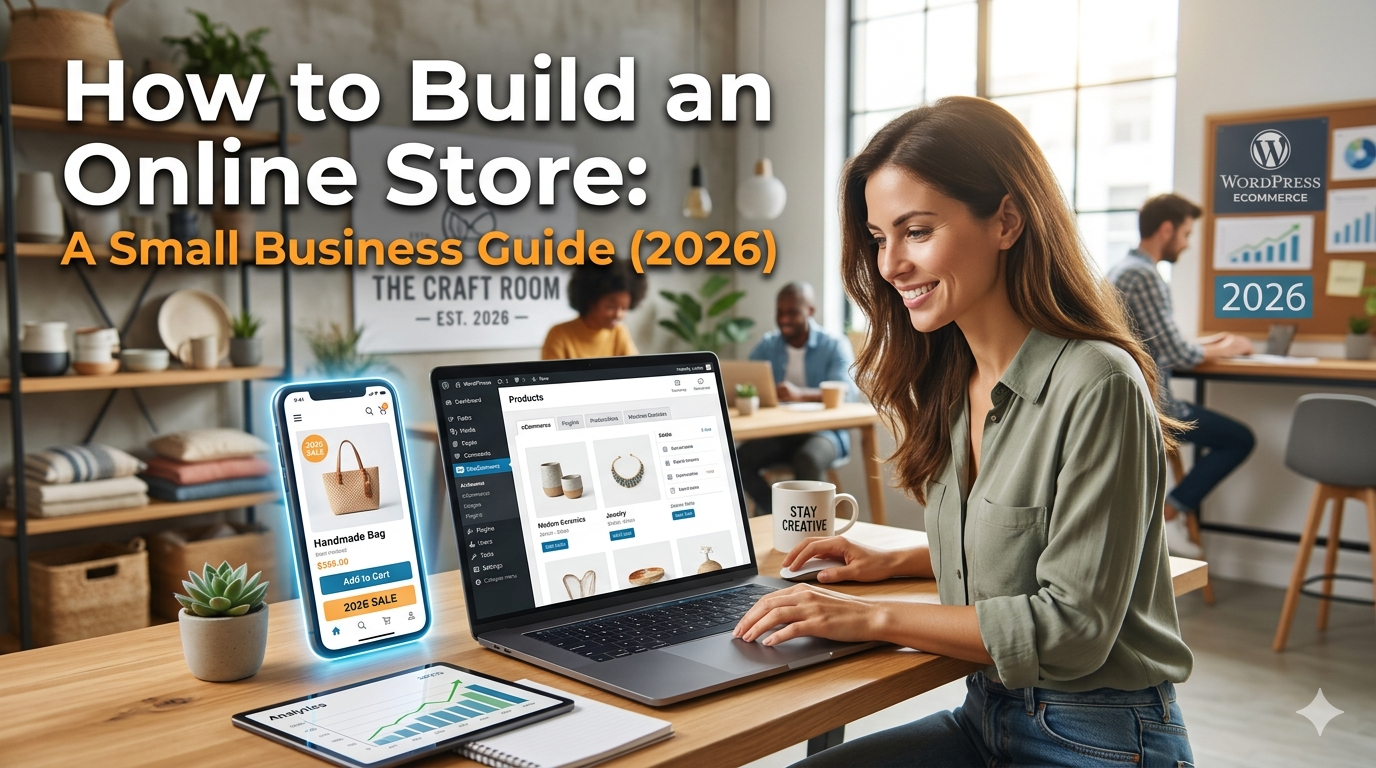
Building an online store involves more decisions than it looks like from the outside and the order you make them in matters.
Most guides on this topic are written by platforms trying to sell you their software. This one isn’t. We build WooCommerce stores and custom e-commerce applications, but we’ll walk you through every option platform choice, catalog planning, payment setup, SEO, launch without assuming which tool is right for you.
By the end of this guide, you’ll know what the full process looks like, what you can handle yourself, where professional help is worth the money, and what order to do everything in.
Step 1: Choose Your E-Commerce Platform
The platform decision shapes everything else your monthly costs, your design constraints, your SEO flexibility, and what you can do when your requirements change. Make this decision before anything else.
Three real options:
Shopify is a fully hosted subscription service. You pay $79–$399/month, Shopify handles hosting and security, and you manage your store through their interface. Fastest path from zero to selling. Best for: product first businesses with simple catalogs, no existing WordPress presence, tight launch timelines.
WooCommerce is a free WordPress plugin you install on hosting you control. The store lives on your server, in your database, on your domain. Best for: existing WordPress sites, businesses where content marketing is a growth strategy, and owners who want full data ownership and lower long term recurring costs.
Custom development (MERN, Laravel, or similar) means building a store specifically for your business logic no platform constraints, built to your exact requirements. Best for: unique purchasing flows, deep system integrations, multi vendor marketplaces, or requirements that don’t fit either platform.
For a complete side by side comparison with cost modeling, see our Shopify vs. WooCommerce vs. custom e-commerce guide.
Step 2: Register Your Domain and Set Up Hosting
Domain registration: Choose a .com domain it’s still the default expectation for US businesses. Keep it short, pronounceable, and brand consistent. Check that it doesn’t conflict with a trademarked name. Register through Namecheap, Cloudflare Registrar, or your hosting provider (though keeping domain and hosting separate gives you more flexibility).
Hosting:
If you chose Shopify hosting is included. Skip this step.
If you chose WooCommerce don’t use shared hosting at $5–$10/month. Business WordPress sites need proper PHP memory limits, fast server response times, and reliable uptime. Managed WordPress hosting (WP Engine, Kinsta, Cloudways) typically runs $25–$80/month and is worth every dollar for a store that’s expected to generate revenue.
If you chose custom development your development team will specify hosting architecture. A Node.js application (MERN stack) and a Laravel application have different infrastructure requirements.
SSL certificate: Required. Every e-commerce store must run on HTTPS browsers flag non HTTPS sites as “Not Secure,” and no one enters payment information on an insecure connection. SSL is now included with virtually all quality hosting providers at no extra cost.
Step 3: Plan Your Product Catalog
Plan your catalog structure before you start building. Decisions made here affect your URL structure, your navigation, and how much rework you do later.
Product types: Know what types you’re selling before you configure anything.
Simple products: One SKU, one price. Most physical products.
Variable products: Multiple options (size, color, material) each with their own SKU, price, and inventory count. Most clothing and configurable goods.
Downloadable/digital products: No physical shipping. Software, templates, music, ebooks.
Subscription products: Recurring billing on a schedule. Requires specific plugins or platform features plan for this from the start.
Catalog size: The number of SKUs affects platform choice, import strategy, and development time. A 20 product catalog and a 2,000 product catalog are different projects. Be honest about your real SKU count before you scope the project.
Product photography and copy: The store is only as good as its content. Before you build, plan how you’ll produce:
Product photos (plain background, lifestyle, detail shots)
Product descriptions (what’s different about this product, not just what it is)
Accurate dimensions, weights, and specifications (required for shipping calculations)
Inventory management: Decide before launch whether you’re managing inventory in the store platform or syncing from an external system (QuickBooks, a 3PL warehouse, a supplier feed). External sync adds integration complexity identify this requirement early.
Step 4: Set Up Payments
Choose a payment gateway: The gateway processes credit card transactions. Main options:
| Gateway | Transaction fee | Monthly fee | Notes |
|---|---|---|---|
| Stripe | 2.9% + $0.30 | None | Best developer experience, 135+ currencies |
| PayPal | 3.49% + fixed fee | None | High buyer recognition, optional checkout |
| Square | 2.6% + $0.10 | None | Best if you also have a physical retail location |
| Shopify Payments | 2.9% + $0.30 | Included in plan | Required to avoid Shopify’s extra 0.5–2% fee |
On Shopify: Use Shopify Payments if available in your country it eliminates the additional transaction fee Shopify charges when you use a third party gateway.
On WooCommerce: Install a gateway plugin (WooCommerce Stripe Plugin, WooPayments, or similar). All standard gateways are supported.
Sales tax: US e-commerce sales tax is complex nexus rules vary by state, and requirements have changed significantly since the 2018 South Dakota v. Wayfair Supreme Court decision. For most small businesses starting out, Shopify Tax (built in) or TaxJar/Avalara integrations handle this automatically. Get this set up at launch retroactive tax calculation is painful.
Test your checkout: Before you go live, run a real transaction with a real card. Refund it immediately. Confirm the order confirmation email arrives, the inventory decremented, and the funds appeared in your gateway dashboard.
Step 5: Configure Shipping
Shipping zones: Define which regions you ship to and what rates apply. Domestic only, or international? Continental US only, or Alaska and Hawaii at different rates?
Rate strategy: Three main approaches:
Carrier calculated: Real time rates from USPS, UPS, FedEx based on actual dimensions and weight. Most accurate, requires accurate product weights.
Flat rate: Charge a fixed amount per order or per item. Simple for buyers, may undercharge or overcharge depending on order size.
Free shipping: Often at a threshold (free over $75). The most effective conversion tactic in e-commerce, but the cost comes directly from your margin model the impact before enabling.
For digital products: No shipping configuration needed. The platform delivers download links automatically after purchase.
Fulfillment: Are you shipping in house, dropshipping, or using a 3PL (third party logistics provider)? If using a 3PL or dropship supplier, plan the integration early this affects both your platform choice and your build timeline.
Step 6: Build the Store
Theme or custom design: On Shopify or WooCommerce, you’ll either work from a premium theme (faster, lower cost, shared with many other stores) or build a custom design (slower, higher cost, built for your brand). For a business where the website is a primary revenue driver, a custom design is usually the right investment.
Core pages every store needs:
Home: Clear value proposition, featured products or categories, trust signals
Shop/Collections: Product listing pages with filtering and sorting
Product pages: Photos, descriptions, variants, add to cart, reviews
Cart and Checkout: Streamlined, minimal friction, multiple payment options
About: Who you are, why buy from you vs. Amazon
Contact: Email, phone, possibly live chat
Return/Refund Policy: Required customers read this before buying
Privacy Policy: Required by law in most jurisdictions
Shipping Information: Expected delivery times, carrier options
Mobile first priority: Over 60% of e-commerce traffic comes from mobile, but the majority of purchases still complete on desktop. StatCounter’s platform data tracks mobile traffic share across global web usage. That means your mobile experience determines whether customers add to cart; your desktop experience determines whether they check out. Both must work well but test mobile first.
Site speed from day one: A slow store loses sales. Compress images before upload (or use a CDN with automatic optimization). Minimize plugins and apps every one adds load time. On WooCommerce, use a caching plugin from day one. On Shopify, avoid loading too many third party scripts.
Step 7: Set Up SEO Fundamentals
SEO isn’t a phase you do after launch it’s configured at build time. Missing this at launch delays your rankings by months.
URL structure: Product URLs should be readable and keywordnrelevant. /product/blue cotton t-shirt mens medium beats /product/?p=4821. On WooCommerce, configure your permalink settings before adding products changing them later requires redirects.
Product page SEO: For each product:
Title tag: include the product name and relevant keywords
Meta description: write unique copy, not auto generated
Alt text on all images: describe the image with relevant keywords
Schema markup: Product schema with price, availability, and review data
On WooCommerce: Install Yoast SEO or RankMath. Configure site wide settings (sitemap, meta defaults, schema) immediately after launch.
Google Search Console: Submit your XML sitemap to Google Search Console within 48 hours of launch. This is how Google knows your store exists and how you track which pages are indexed and ranking.
Google Analytics 4: Connect GA4 before launch. E-commerce tracking (transactions, revenue, conversion rate by source) requires proper setup 1don’t try to retrofit it after 6 months of data has passed without it.
Step 8: Test Before You Launch
Don’t skip this. A broken checkout or a non functional email on launch day costs real sales.
Payment test: Complete a full purchase with a real card on the live environment. Verify the order appears in your admin, the inventory decremented, and the funds hit your gateway dashboard. Then refund it.
Mobile test: Open every page on a real phone (not a browser resize). Specifically test: navigation menu, product image gallery, add to cart button, checkout form, and payment entry on mobile.
Email test: Trigger every automated email order confirmation, shipping notification, abandoned cart (if configured). Verify they render correctly, include the right information, and land in your inbox (not spam).
Link audit: Click every link in the navigation and footer. Check that all product links work, all category pages load, and the checkout process flows correctly from cart to confirmation.
Speed test: Run your homepage and a product page through Google PageSpeed Insights. On mobile, aim for a score of 75+. If you’re below 60, investigate before launch slow stores have measurably lower conversion rates.
When to DIY vs. When to Hire a Professional
You can build a Shopify store yourself with no technical background. The platform is designed for it. If you’re launching a simple product catalog with a limited budget and a tight timeline, Shopify’s self serve setup is a legitimate approach.
Professional help is worth the cost when:
WooCommerce is the right platform: WooCommerce on proper hosting with performance optimization, security hardening, and a custom theme is not a beginner DIY project. A template based WooCommerce setup done poorly is slower, less secure, and harder to maintain than Shopify. A professionally built WooCommerce store is faster, more flexible, and cheaper to operate long term.
Your catalog is complex: Variable products at scale, downloadable products with licensing, subscription billing, or catalog imports from a supplier feed all benefit from professional setup to avoid data quality problems.
SEO is a growth strategy: The technical SEO configuration at launch URL structure, schema markup, canonical tags, sitemap architecture has a months long compounding effect on rankings. Getting it right at launch is significantly cheaper than retrofitting it later.
You need custom functionality: Any feature that doesn’t exist as a standard plugin or app a custom product configurator, a complex quiz or recommendation engine, integration with a proprietary system requires professional development.
You don’t want to manage it after launch: Hosting, updates, security monitoring, backup management, and performance maintenance are ongoing responsibilities. A professional maintenance retainer removes this from your plate.
For a full picture of what professional e-commerce development involves and what it costs, see our e-commerce website development guide and our e-commerce cost guide.
Pre Launch Checklist
Before you publish your store, run through this list:
Technical
[ ] Real payment test completed and refunded
[ ] SSL active (padlock shows in browser)
[ ] All pages load without errors
[ ] Mobile layout tested on a real device
[ ] PageSpeed score acceptable (75+ mobile)
[ ] Sitemap submitted to Google Search Console
[ ] GA4 connected with e-commerce tracking enabled
Content
[ ] All product images are high resolution and compressed
[ ] All product descriptions are written (no placeholders)
[ ] Return policy, privacy policy, and shipping information published
[ ] Contact page working and email tested
Operations
[ ] Order confirmation email tested
[ ] Shipping rates configured for all zones you sell to
[ ] Tax rates configured (or automated tax enabled)
[ ] Inventory counts accurate
[ ] Admin user accounts set up with appropriate roles
How DevVerx Helps Small Businesses Launch Online Stores
We build WooCommerce stores and custom e-commerce applications for US small businesses, with a 4.8/5 verified client rating. Not Shopify but if Shopify is the right answer for your situation, we’ll tell you.
For businesses where WooCommerce is the right fit: we build custom themes (no Elementor, no page builders), configure managed hosting, optimize performance from the start, and stay involved post launch through a defined maintenance arrangement.
For businesses with requirements that go beyond what WooCommerce handles cleanly: we build on MERN or Laravel software designed specifically for your business model, not a platform adapted to it.
Explore our e-commerce development services or book a free strategy call to talk through your project.
Frequently Asked Questions
How long does it take to build an online store?
A Shopify template setup can go live in days. A professionally built WooCommerce store with a custom theme typically takes 4–8 weeks. Custom e-commerce development takes 8–16 weeks depending on scope. The timeline depends on your catalog size, design complexity, and any custom functionality requirements.
How much does it cost to build an online store?
A template based Shopify or WooCommerce setup runs $1,500–$5,000. A professionally built WooCommerce store with custom theme runs $5,000–$20,000. Custom development starts at $15,000. Ongoing costs hosting, maintenance, payment processing run $200–$500/month for most small business stores. See our e-commerce cost guide for the full breakdown.
Do I need a developer to build an online store?
Not always. Shopify is designed to be set up by non technical founders. But for WooCommerce (which requires proper hosting, performance configuration, and theme setup), and for any store with custom functionality or a content driven SEO strategy, professional development pays for itself in performance and ranking outcomes.
What platform should a small business use for their online store?
It depends on your situation. Shopify wins for speed, simplicity, and built in POS. WooCommerce wins when you have an existing WordPress site, content marketing is your growth strategy, or you want lower long term recurring costs. Custom wins when your business logic doesn’t fit either platform. Our platform comparison guide covers the decision criteria in detail.
What’s the most important thing to get right when building an online store?
The checkout experience. Cart abandonment is the most expensive problem in e-commerce typically 70% of shoppers who add to cart don’t complete purchase. A fast, simple, mobile optimized checkout with multiple payment options is where the revenue is either made or lost. Prioritize this over design polish.